Can someone help me try to make a proper sprite for the UI screen of my project and the UI icons being able to stay on the screen whenever moving, like this pink block and next to it and A button icon showing to press A to shoot a projectile

1 Like
You can use the set sprite flag block. Usiong that you can set your UI sprite to relative to camera and done! IT stays on the screen no matter where the camera moves
1 Like
Take this block out of the toolbox:

Then change the “auto destroy” to relative to camera like so:

Then toggle OFF to ON, then you’re set!

2 Likes
A ‘sprite stay in screen’ block might work. I prefer to use ‘Set mySprite Relative to camera to on’ block. These can be found in the Sprites category.
There are 2 ways to do it.
-
You could use the
 block. Press on the drop-down menu and click on ‘relative to camera’ block. This is useful for small, repetitive projects.
 -
You could install the arcade sprite utils extension searching this:
then install it and find this block: and put your UI sprite in it. This is better for big projects.
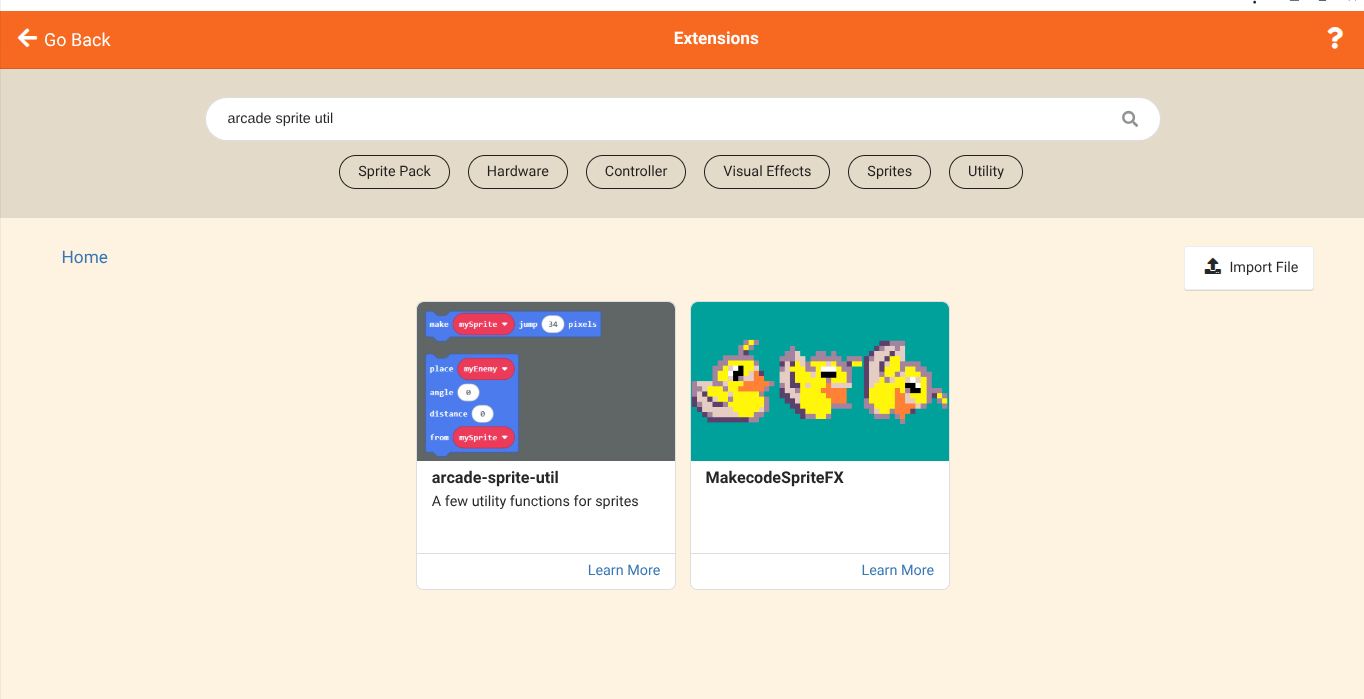

I hope this was helpful. If you have any questions don’t hesitate to ask!
you can use

which makes it so the sptite will always stay on screen where there are and move with the camera
downside is it auto make ghost set to on so you can overlap with anything
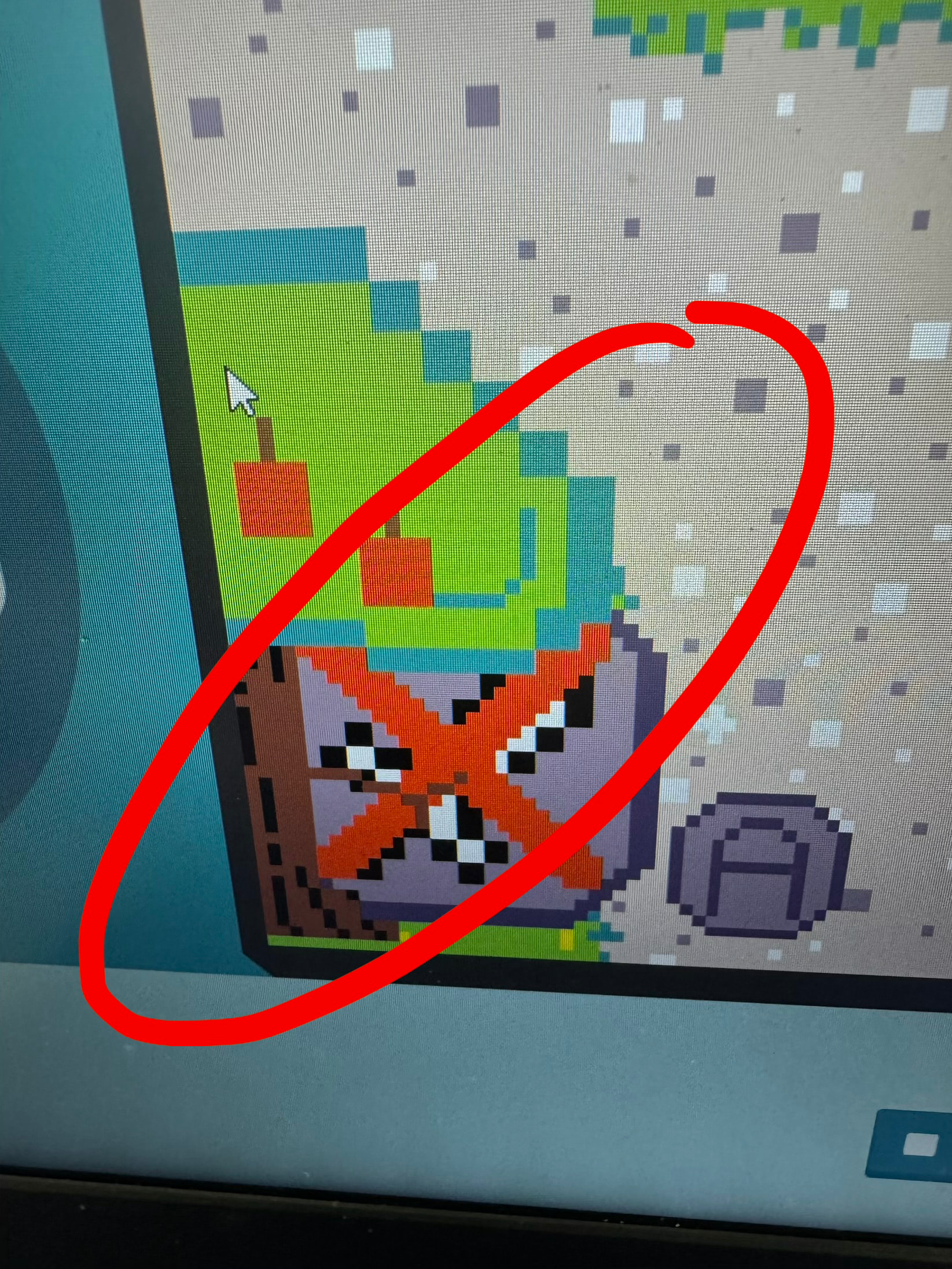
You should make sure to add this sprite AFTER the tree sprite is added!
You can drag a set (sprite) x to (0) block and then change the x into z, which is at the very bottom. This allows you to order which sprites are on top another, with higher numbers being closer to the screen and lower being further. Or I guess you could just use riseupdevs way…
set the z index of the ui sprite to be higher than the objects underneath it. higher-z sprites will always be drawn above lower-z sprites