# How to use Aseprite to draw art for makecode (tutorial)
**URL:** https://forum.makecode.com/t/how-to-use-aseprite-to-draw-art-for-makecode-tutorial/44782
**Category:** Help
**Tags:** make, art
**Created:** [July 5, 2026, 9:02pm UTC](https://forum.makecode.com/t/how-to-use-aseprite-to-draw-art-for-makecode-tutorial/44782 "2026-07-05T21:02:45Z")
**Posts on this page:** 7
**Page:** 1
### Author:  [@ScriptScraper](https://forum.makecode.com/u/ScriptScraper)
#### Post date: [July 5, 2026, 9:02pm UTC](https://forum.makecode.com/t/how-to-use-aseprite-to-draw-art-for-makecode-tutorial/44782/1 "2026-07-05T21:02:45Z")
The built-in art editor in makecode is decent and all, but it can be pretty clunky, and lacks a lot of features. You can’t have layers, a reference image, a lasso tool, and many other useful quality of life stuff you’d get in a dedicated pixel art software like Aseprite. So what if you could just use Aseprite(or any other pixel art software) instead? Well, there is a way to seamlessly do so. By following these steps, you can transfer exactly what you draw in Aseprite without manually re-drawing every pixel!
1. Transfer the color palette: Obviously, you need to make sure you have the exact same colors. Go to assets, click on color, and transfer those colors to whatever software you’re using. Preferably save that palette so you don’t have to repeat this step. If the colors aren’t identical, this won’t work.

1. Draw whatever: Draw the stuff you need to draw, now much more easily. Keep makecode’s screen resolution in mind.
2. Export: Export the image once you’re done, and make sure that it’s the original size, no upscaling.
3. Convert to makecode: By using this makecode image converter, [https://kristianpedersen.github.io/Convert-Image-to-MakeCode-Arcade-Sprite/](https://kristianpedersen.github.io/Convert-Image-to-MakeCode-Arcade-Sprite/), you can transfer that export into makecode! Here’s a few things to note: If it’s a small sprite, be sure toggle “keep original size”, and if it’s bigger than the default resolution, be sure to manually set the custom resolution. If done correctly, it should look EXACTLY like the original!
4. Convert to blocks(optional): Do note that the image converter gives you javascript code, and I KNOW a lot of you hate javascript (except @WoofWoof). So you can simply create an empty project, paste it there, and then just copy the image. Then you can take it wherever you want.
And there you go! With this simple process, you no longer need to use the mid makecode art editor. Oh, and a few more things, the image converter makes empty space black, and I’m not sure how well this works with custom palettes.
---
### Author:  [@VoxelMaster64](https://forum.makecode.com/u/VoxelMaster64)
#### Post date: [July 5, 2026, 11:20pm UTC](https://forum.makecode.com/t/how-to-use-aseprite-to-draw-art-for-makecode-tutorial/44782/2 "2026-07-05T23:20:09Z")
you can paste this into the makecode image editor:
```auto
img`
0 1 1 1 1 0
1 5 0 0 5 1
1 0 0 0 0 1
1 2 0 0 2 1
1 0 2 2 0 1
0 1 1 1 1 0
`
```
---
### Author:  [@Luke](https://forum.makecode.com/u/Luke)
#### Post date: [July 6, 2026, 5:22pm UTC](https://forum.makecode.com/t/how-to-use-aseprite-to-draw-art-for-makecode-tutorial/44782/3 "2026-07-06T17:22:21Z")
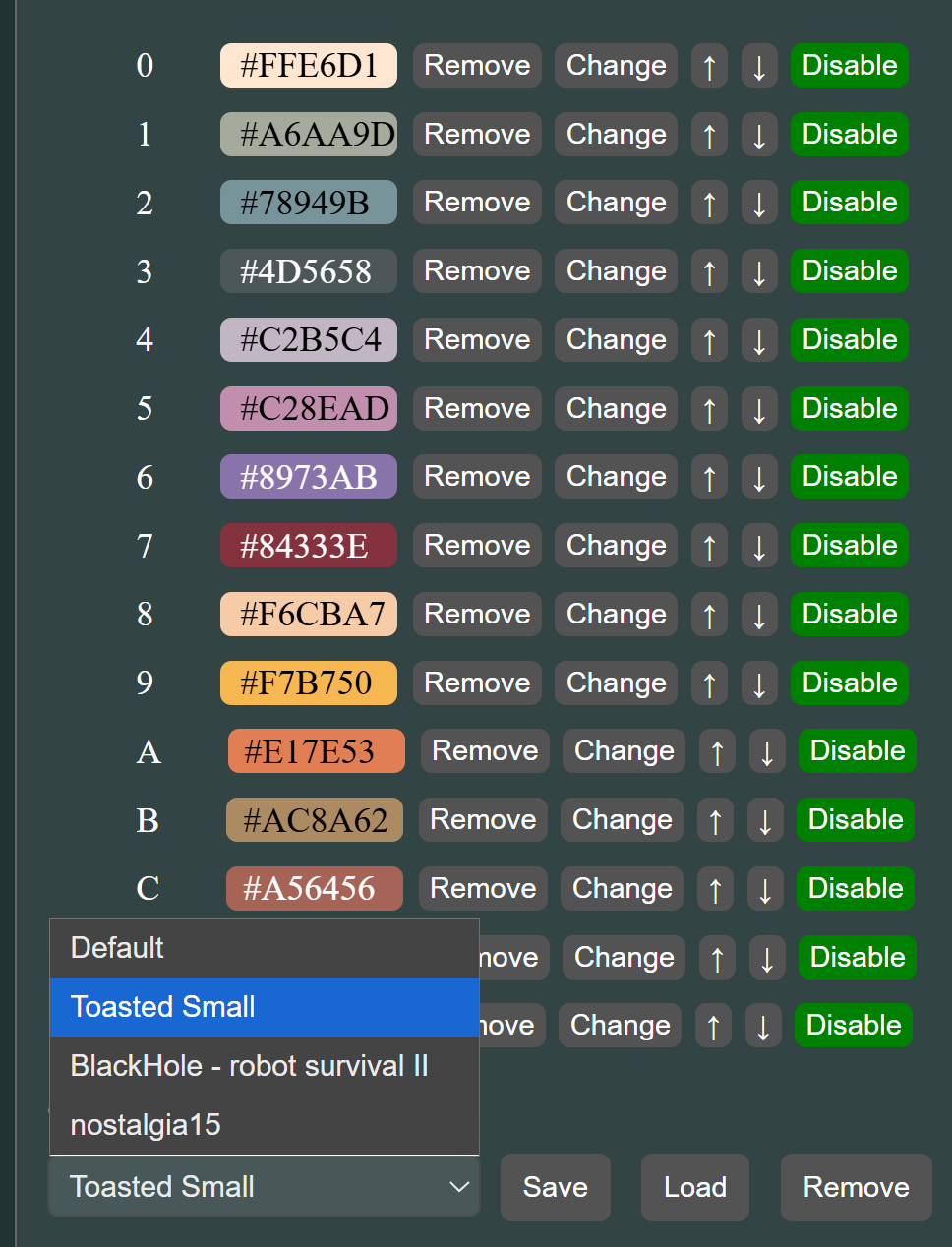
I like to use @YuHayate’s website [https://yu-hayate.github.io/Makecode-Yu-Hayate-Dithering/](https://yu-hayate.github.io/Makecode-Yu-Hayate-Dithering/), its a lot easier as it gives you a copyable image directly. It also saves colour palettes which is nice and makes using custom palettes way easier compared to kristian’s version as if you use colours that are too similar, they may be read as 1 colour when translated to the default palette.
---
### Author:  [@TheEarth](https://forum.makecode.com/u/TheEarth)
#### Post date: [July 8, 2026, 10:57pm UTC](https://forum.makecode.com/t/how-to-use-aseprite-to-draw-art-for-makecode-tutorial/44782/4 "2026-07-08T22:57:28Z")
Your using black hole 14 for robot survival 2 cool
---
### Author:  [@YuHayate](https://forum.makecode.com/u/YuHayate)
#### Post date: [September 5, 2026, 2:27am UTC](https://forum.makecode.com/t/how-to-use-aseprite-to-draw-art-for-makecode-tutorial/44782/5 "2026-09-05T02:27:07Z")
fun fact if you can manage to just copy all the text from makcode arcades interface
such as
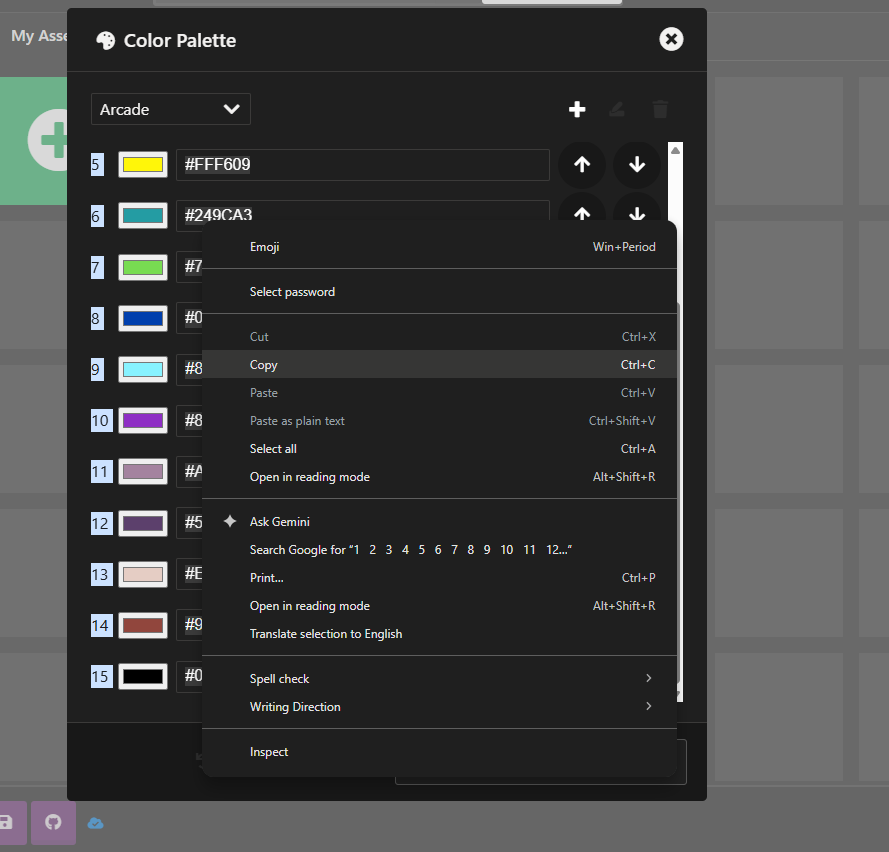
and get a string such as this
```auto
1
#FFFFFF
2
#FF2121
3
#FF93C4
4
#FF8135
5
#FFF609
6
#249CA3
7
#78DC52
8
#003FAD
9
#87F2FF
10
#8E2EC4
11
#A4839F
12
#5C406C
13
#E5CDC4
14
#91463D
15
#000000
```
then right click on my website and press inspect to enter the console

you will find this helpful tool
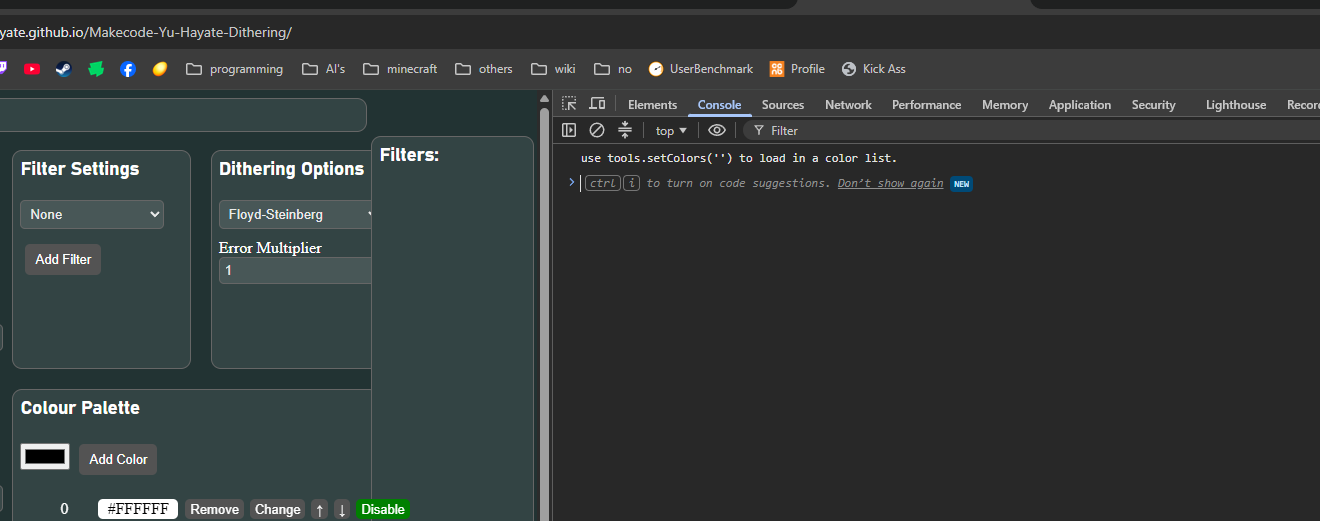
then paste in the previously copied text

(it automaticaly filters out what is not a hex color)
and there you go, all the colors you just had are now pasted in

---
### Author:  [@ScriptScraper](https://forum.makecode.com/u/ScriptScraper)
#### Post date: [September 5, 2026, 6:11am UTC](https://forum.makecode.com/t/how-to-use-aseprite-to-draw-art-for-makecode-tutorial/44782/6 "2026-09-05T06:11:27Z")
Wow, the very creator of this website is here! You did a really good job, this is easily the best makecode image converter there is.
---
### Author:  [@YuHayate](https://forum.makecode.com/u/YuHayate)
#### Post date: [September 17, 2026, 9:50pm UTC](https://forum.makecode.com/t/how-to-use-aseprite-to-draw-art-for-makecode-tutorial/44782/7 "2026-09-17T21:50:39Z")
thank you very much, i might come back to it and upgrade it even further once I’m done school (I’m in college for Networking and Cyber security)
i was also planning on making a video converter,
here is what i had done on that
> **[Bad apple](https://arcade.makecode.com/S10581-99827-86906-06510)**
>
> its Bad apple
video is 2fps played at 12fps