Hey folks! Big update to the split screen extension today! I basically refactored the whole thing, so now it has a bunch more options.
Global Split Screen is now a Sprite
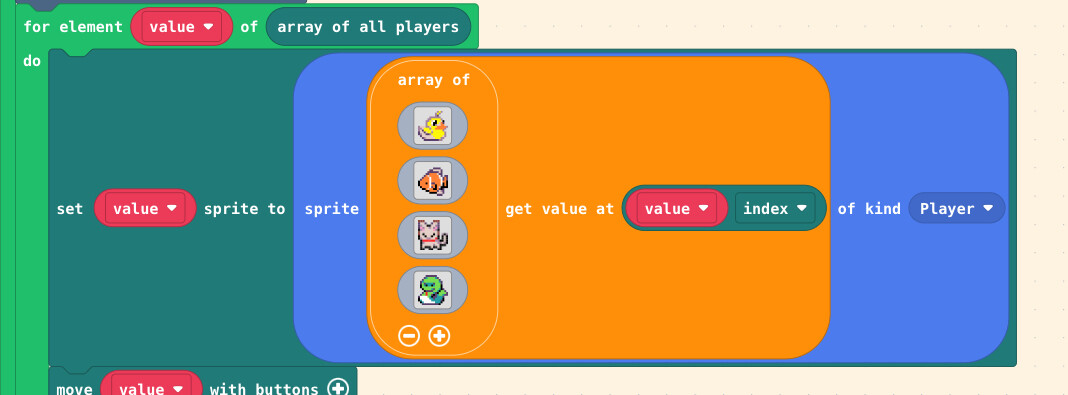
This one is a little weird to wrap your head around, but the split screen is now a Sprite, which means you can do Sprite things with it. You can access the sprite using this block:
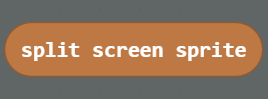
Why does that matter? Well, now you can use other Sprite related blocks with it, like changing its position, setting it to be invisible, controlling which screen it renders on with the second screen extension, changing the z-index that it renders at so you can draw HUD elements above it, etc. If you’re not worried about any of that, you can ignore it! It’ll work exactly the same as it did before.
This split screen Sprite has the “Relative to Camera” and “Ghost” flags set on it automatically. Also, make sure you don’t destroy this Sprite! It will make the split screen stop working.
New Global Split Screen Blocks

We have four new blocks for the global split screen!
The first one lets you set the z-index that the split screen will capture everything below at. Again, this is mostly useful if you have HUD elements that you want to render above the split screen
The second one, as mentioned above, returns the Sprite that renders the split screen.
The third one lets you get the various properties of the split screen cameras. This is just like the camera x/y/left/right/top/bottom block in the scene category.
The last one lets you change the render size of the screen. By default, the split screen always takes up the full screen size, but with this block you can make it only take up part of the screen. If you change the size, you’ll probably want to reposition it so remember that you can move the sprite around with the blocks in the Sprites category!
New Camera View Sprites
Why do I keep saying “global” split screen? Well, that’s because there’s a new bit of functionality in the split screen extension! You can now create individual “camera view” Sprites that give you a lot more flexibility in how you split up the screen!

These sprites have all the same blocks as the global split screen, but each camera view sprite has only one camera.
You can also create as many as these as you want. Does your game need 16 individual cameras for some reason? Well, that’s now something you can accomplish:
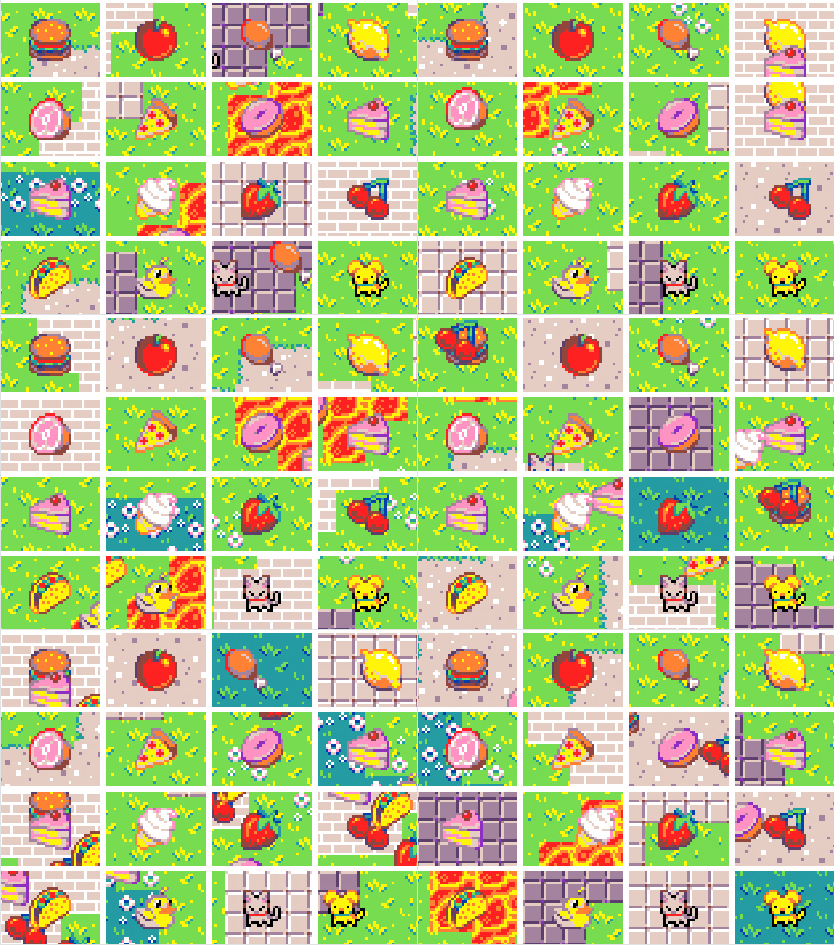
Code for that example is here
Of course you could also use this for a more sane purpose, like having a picture in picture view in your game. It’s up to you!